💡 Three Pro-Level Tips to Breathe Life into Your Grease Pencil Work
1. Mastering Grease Pencil Modes for Spatial Awareness
The key to making 2D drawings truly inhabit 3D space lies in understanding Grease Pencil’s drawing modes: Origin, Surface, and Stroke. Don’t just draw; position your canvas deliberately. Origin mode anchors drawings to a fixed point, crucial for understanding how objects interact in depth. Use it when you need precise positioning relative to other 3D elements. Surface mode, on the other hand, allows you to paint directly onto 3D meshes, creating effects like drawing on a wall or a character’s clothing. Experimenting with the distance parameter in Surface mode is vital for achieving that subtle “lift-off” effect, preventing your 2D elements from feeling glued to the 3D surface.
2. Harnessing Auto Keying and Onion Skinning for Fluid Animation
Animating requires an iterative process, and Blender’s tools can drastically speed this up. Instead of manually inserting every keyframe, activate Auto Keying. This function automatically creates keyframes as you make changes in the timeline, especially useful during the rough animation phase. Coupled with Onion Skinning, which displays previous and next frames as blurred overlays, you can draw new frames with unparalleled precision. This is not just about saving clicks; it’s about maintaining visual continuity and flow, allowing you to focus on the motion itself rather than the technicalities of frame management.
3. The Subtle Art of Pacing: Ease In and Ease Out in Action
A common pitfall in animation is creating movements that feel too uniform or too fast. Animator Jonghyun JUNG-BOIX emphasizes the critical role of pacing. For a bouncing ball, this means understanding the physics of deceleration at the apex and acceleration during descent. When drawing your in-betweens, consciously place keyframes closer together when speed is high and further apart when the object is slowing down. This creates the natural Ease In and Ease Out effect, transforming jerky movements into smooth, believable motion. It’s the difference between a series of drawings and a fluid, captivating performance.
🛠️ Key Skills & Details That Define Professional Quality
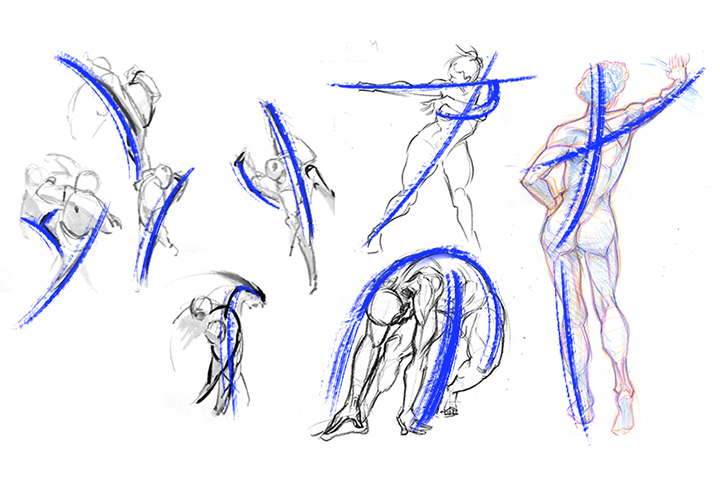
Moving beyond basic drawing, professionals leverage Blender’s 3D capabilities to enhance 2D animation. This involves understanding how to set up a scene with cameras and lights that interact with your Grease Pencil drawings. For instance, when a character drawn with Grease Pencil moves behind a 3D object, the occlusion must be handled correctly, demonstrating that the 2D element truly exists within the 3D environment. This requires careful scene composition and camera work.
Furthermore, mastering animation fundamentals like Squash and Stretch directly applies to Grease Pencil. You’re not just drawing shapes; you’re conveying forces and energy. For example, a character preparing to jump might visually compress (squash) and then extend rapidly (stretch) as they leap. The ability to seamlessly integrate these principles, using tools like custom brushes and manipulating vector points for subtle adjustments, allows animators to achieve a high level of polish and dynamism that truly stands out.
💬 Frequently Asked Questions
Q. How can an Animator ensure their Grease Pencil drawings look natural in a 3D scene?
Animator Jonghyun JUNG-BOIX emphasizes using a combination of drawing modes and understanding spatial relationships. When using Surface mode, adjusting the distance parameter is crucial to give drawings a sense of depth and separation from the 3D mesh they are drawn on. For characters moving behind objects, ensuring the drawing is correctly positioned in 3D space, rather than just a flat image on the screen, is key to believable interaction.
Q. What’s the most efficient way for an Animator to create smooth animation cycles in Blender using Grease Pencil?
Animator Jonghyun JUNG-BOIX strongly recommends utilizing Auto Keying and Onion Skinning. Auto Keying automates the creation of keyframes as you animate, streamlining the workflow. Onion Skinning provides visual guides by displaying previous and subsequent frames, allowing for precise drawing of in-betweens. Combining these tools significantly speeds up the animation process while maintaining fluid motion.
Q. How can an Animator apply the principles of physics to make their Grease Pencil animations more dynamic?
Animator Jonghyun JUNG-BOIX teaches that this involves understanding and applying concepts like Ease In and Ease Out through careful spacing of keyframes. For example, in a bouncing ball animation, spacing keyframes further apart at the top of the bounce (where the ball slows down) and closer together during the descent (where it speeds up) creates a more natural and dynamic feel. This conscious manipulation of timing and spacing is fundamental to impactful motion.