🛠️ Key Skills & Details That Define Professional Quality
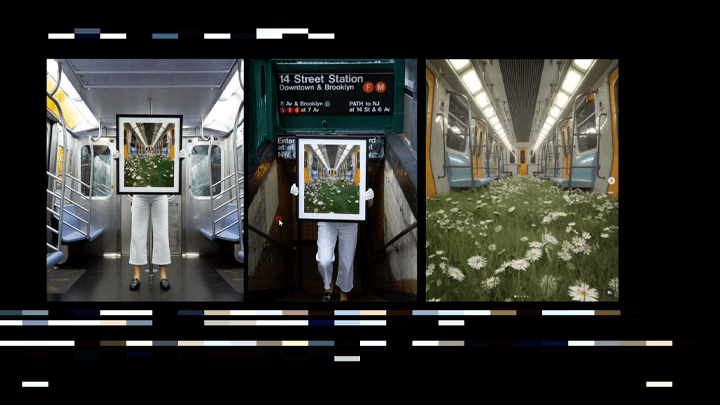
Professional 3D artists don’t just know how to use software; they understand how different elements interact. This course emphasizes practical workflows that bridge the gap between your source material and your final render.
- Image Preparation Mastery: Understand how to use Photoshop’s Crop Tool and rulers to establish a clean, straight base for your 3D scene. This foundational step is crucial for accurate camera mapping later on.
- Strategic Imperfection Removal: Learn to use tools like Content-Aware Fill, Spot Healing Brush, and the Clone Stamp Tool to remove baked-in reflections and light sources. This ensures your 3D scene elements can be animated dynamically, rather than being static visual artifacts.
- Emission Isolation Techniques: Precisely isolate light-emitting elements from your source images using Color Range selections in Photoshop. This skill is vital for creating convincing glowing effects and emissive shaders in your 3D renders.
- Geometry Reconstruction: Grasp the concept of “mapping everything,” which involves creating simplified 3D geometry (like planes) in Cinema 4D that accurately represent the surfaces in your source image. This allows for precise projection of your prepared textures.
- Handling Intersecting Geometry: Recognize that complex scenes often require isolating different planes and objects. For instance, pillars intersecting with a background plane need to be treated as separate entities to maintain proper 3D positioning and interaction. This might involve creating multiple texture maps for different parts of the scene.
- Creating Your Own Bump Maps: Elevate your surface realism by learning to generate bump or normal maps from your textures. Using filters like High Pass or 3D > Generate Normal Map in Photoshop can add subtle details that catch light realistically in your render.
💬 Frequently Asked Questions
Q. How does a 3D Artist ensure geometry is perfectly straight before mapping in Cinema 4D?
A. A 3D Artist uses Photoshop’s Crop Tool in conjunction with its ruler guides (Ctrl+R) to straighten the source image. By aligning the guiding lines with prominent geometric features in the photo, they can ensure the underlying structure is perfectly vertical or horizontal. This accuracy is paramount for seamless projection in 3D software.
Q. What is the most efficient way for a 3D Artist to remove problematic reflections from source photos?
A. A 3D Artist typically uses a combination of Photoshop tools. They might start with Content-Aware Fill for less complex areas or the Spot Healing Brush for small blemishes. For larger or more defined reflections, the Clone Stamp Tool is often employed to sample and paint over the unwanted elements, ensuring a clean, neutral base for 3D mapping.
Q. How can a 3D Artist isolate light sources or emissive elements for use in a 3D scene?
A. A 3D Artist would use Photoshop’s ‘Select > Color Range’ feature to isolate specific colors. After selecting the emissive areas, they create a new black layer and use the selection to generate a precise mask. This mask, when applied in 3D software, can drive emission shaders, allowing for realistic glowing effects that react to lighting in the scene.