🛠️ Key Skills & Details That Define Professional Quality
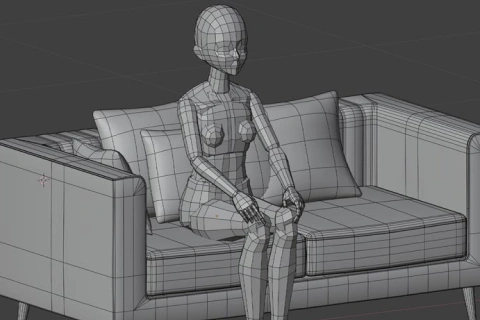
Achieving a seamless blend between 3D backgrounds and 2D characters hinges on understanding how to translate 3D forms into comic-appropriate line art. This involves:
- Model Simplification for Line Art: Learn to create models where the form is clear without excessive geometric detail. This directly impacts the clarity of your exported line art.
- Toon Shaders and Custom Materials: Go beyond default materials. Creating basic toon shaders with specific color and shadow settings, and adding artificial highlights, will make your 3D assets pop in a comic style. Registering these materials to an asset library speeds up future projects.
- Halftone and Pattern Generation: Discover add-ons that generate halftone materials directly within Blender. This is a game-changer for replicating traditional comic printing effects without manual work.
- Efficient Export Pipelines: Master exporting line art and materials separately. This workflow allows for greater control in compositing, enabling you to trace over the 3D render in your preferred 2D software (like Clip Studio Paint) and achieve the exact hand-drawn feel you’re after. Pay attention to settings like cropping the underdrawing to match the rendered size for perfect alignment.
💬 Frequently Asked Questions
Q. Cartoonist, how can I make my 3D Blender backgrounds look hand-drawn instead of overly rendered?
A. Focus on simplifying your models by reducing vertex count. Utilize Blender’s Freestyle rendering engine and adjust line thickness settings to mimic traditional inking styles. Experiment with toon shaders and avoid hyper-realistic textures; instead, aim for flat colors and stylized shadows.
Q. Cartoonist, what are the most efficient ways to manage 3D assets for multiple comic pages in Blender?
A. Employ Blender’s Collection system to group related assets by scene or panel. Use Render Layers to isolate elements for easier compositing. This organizational approach prevents extremely large file sizes and speeds up your rendering and export process for each page.
Q. Cartoonist, how can I ensure my 3D exported line art integrates perfectly with my 2D character art in Clip Studio Paint?
A. When exporting from Blender, ensure your underdrawing is set up to match the final render size. By carefully adjusting camera settings and using the separate line art and material exports, you can directly overlay or trace these elements onto your 2D canvas in Clip Studio Paint, achieving a cohesive look.