🛠️ Key Skills & Details That Define Professional Quality
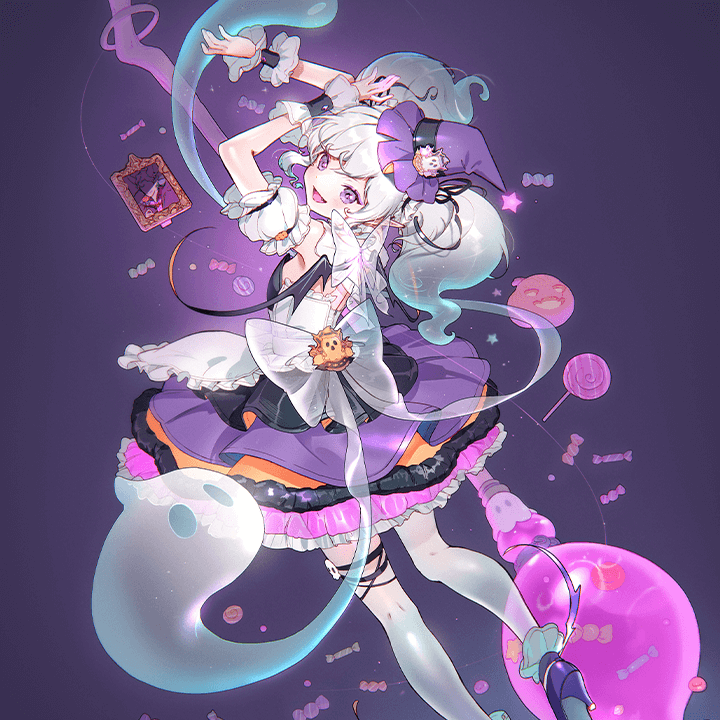
To achieve that professional polish, focus on these hands-on techniques:
- Strategic Layer Duplication & Masking: Instead of redrawing elements for each view (front, side, back), duplicate your existing layers. Use masks to reveal or hide parts as needed, especially for elements that are partially obscured (like undergarments seen through a sheer skirt) or to refine edges that wouldn’t be visible in certain angles. This saves time and ensures your details align across all views.
- Utilizing ‘Action’ or Brush Presets for Repetitive Tasks: KETO highlights the use of ‘Action’ files or custom brush presets for common adjustments. This includes anything from applying consistent line weights, creating specific wrinkle effects on fabric, to softening outlines. Automating these small, time-consuming tasks frees you up to focus on the creative aspects of design.
- Subtle Opacity and Color Adjustments for Depth: Achieving realism often comes down to subtle edits. For translucent materials, adjust layer opacity. For adding a glowing effect, experiment with ‘Color Dodge’ blending modes and strategically placed brush strokes. Similarly, subtle shifts in hue and saturation on specific elements, like turning a gray ribbon a faint green, can add significant depth and character.
💬 Frequently Asked Questions
Q. Concept Artist KETO mentioned adjusting the volume of clothing based on the dress. How can I practically do this in Photoshop?
A. Concept Artist KETO suggests using the ‘Transform’ tool (Ctrl+T or Cmd+T) to scale, rotate, or skew clothing elements. For adding volume, experiment with the ‘Puppet Warp’ tool. It allows you to place distortion points and drag them to simulate fabric draping or bulging, giving the impression of volume and movement without redrawing the entire piece. Always remember to work on a duplicated layer to preserve your original.
Q. Concept Artist KETO emphasizes checking front and back views for consistency. What’s the most efficient way to do this in a character design sheet?
A. Concept Artist KETO’s method involves duplicating and flipping relevant layers. For example, if you’ve finalized the details of a ribbon on the front view, duplicate that layer, flip it horizontally, and then place it onto the back view. You can then refine it by masking or slightly adjusting its position to match the character’s back form. This ensures that decorative elements remain consistent across all angles.
Q. Concept Artist KETO uses ‘Action’ files for refining shapes. Can I create my own custom Actions in Photoshop for similar workflows?
A. Absolutely. Concept Artist KETO leverages custom Actions to automate repetitive editing tasks, which is a key time-saver. In Photoshop, you can record your own sequences of commands (like applying a specific filter, adjusting levels, or using transform tools) and save them as an Action. You can then assign a shortcut or button to trigger this sequence with a single click, dramatically speeding up your workflow for tasks like applying consistent frill shapes or softening outlines.