💡 David Oku’s Core Techniques for Injecting 3D Feel
Let’s break down the essential strategies that Graphic Designer David Oku employs to bring his designs to life with that sought-after 3D quality.
1. The Art of Anchor Point Manipulation for Perspective
Oku emphasizes that achieving a 3D illusion isn’t just about the tools themselves, but how you use them. For instance, when creating a brick or a simple cylinder, the precise manipulation of anchor points is crucial.
- The Technique: By carefully selecting and adjusting anchor points using the Direct Selection Tool (white arrow), you can subtly alter the shape’s perspective. For a cylinder, this means taking the top anchor points of a rectangle and slightly manipulating them to create a rounded edge, mimicking a cylindrical form. When creating a brick, adjusting the anchor points to create a slight trapezoid effect for the side faces adds a crucial layer of depth.
- The Insight: It’s not just about learning the technique—it’s about shifting how you think about shape construction. Instead of seeing flat shapes, visualize them as facets of a 3D object, and manipulate anchor points to define those facets accurately.
2. Strategic Layering and Pasting for Realistic Depth
A fundamental technique Oku uses to build perceived volume is through strategic layering and the “paste in back” command. This creates a sense of objects existing in front of or behind each other.
- The Workflow: When creating elements like a cup or layered paper, Oku often duplicates an object. He’ll then use
Command+C(copy) followed byCommand+B(paste in back). This places the copied object directly behind the original. By then applying different colors or slight transformations to the back layer, he creates a natural shadow or depth effect. For example, when making the pencil, this method is used to create the subtle shadow effect and the separation between the wood and the ferrule. - The Efficiency: This simple copy-paste-transform sequence, repeated thoughtfully, drastically cuts down production time compared to drawing each layer from scratch. It leverages Illustrator’s ability to manage object stacking efficiently.
3. The “Fake Shadow” for Instant Volume
Oku frequently employs what he calls “fake shadows” to quickly add a sense of dimension, especially when objects are placed on a surface like a plate or desk.
- The Finishing Touch: For a cake on a plate, after constructing the basic shapes, Oku often duplicates the plate’s base, turns it black (or a darker shade), and slightly offsets it downwards. This creates a subtle shadow that grounds the object and makes it feel like it’s resting on a surface. For the pencil, a similar technique is used for the ferrule’s shadow. The key is not photorealism, but a quick, effective visual cue that simulates lighting.
- The Impact: This one tweak can seriously level up your output quality by making objects feel less like flat cutouts and more like they occupy real space.
🛠️ Key Skills & Details That Define Professional Quality
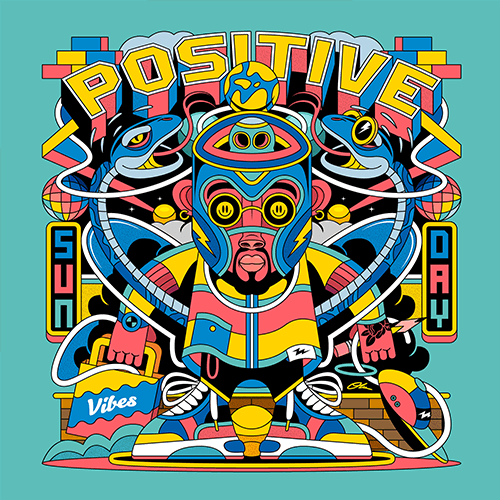
Beyond the basic shapes, Oku’s approach highlights several practical skills that are crucial for professional-level output:
- Shape Construction and Boolean Operations: Mastering tools like the Pathfinder panel (Unite, Minus Front) is essential for creating clean, complex shapes from simpler ones. This is demonstrated when creating the monitor stand or the hole in the cup.
- Pen Tool Mastery: Whether it’s cutting out sections, creating custom shapes for a straw, or refining anchor points, the Pen Tool is fundamental. Oku’s script shows its use in creating cylinders, adding details to the pencil, and defining the edges of various objects.
- Strategic Use of Strokes and Fills: Understanding how strokes can be applied as outlines, internal, or external, and how they interact with fills, is vital. Oku uses strokes to define edges for the monitor and applies fills to create shadows and color variations.
- Gradient Application for Soft Shadows: For a more subtle depth, especially on surfaces like plates, Oku suggests using gradients. By applying a gradient to a duplicated shape and adjusting its opacity or color, you can simulate soft, diffused lighting, adding a layer of sophistication.
- Keyboard Shortcuts and Grouping: Oku consistently uses shortcuts like
Command+G(Group) andCommand+C,Command+F(Copy and Paste in Front) to streamline their workflow. Grouping ensures elements stay together, and efficient copying allows for rapid creation of repeating elements or shadows.
💬 Frequently Asked Questions
Q. Graphic Designer David Oku, how do you ensure the anchor points are perfectly aligned for a clean 3D effect?
When perfect alignment is critical, especially for elements that need to be symmetrical or precisely layered, use Illustrator’s alignment tools. After creating your shapes, select the relevant objects and use the “Align to Selection” or “Align to Artboard” options in the Align panel. For example, when creating the cup, aligning the inner circle precisely to the outer edge is key before subtracting it. Using the “Show Bounding Box” and “Smart Guides” options can also provide visual cues for precise placement and alignment.
Q. Graphic Designer David Oku, what’s your go-to method for creating consistent shadows across multiple objects?
My core strategy for consistent shadows involves establishing a single light source direction conceptually. Then, I duplicate the object casting the shadow, paste it in the back, and offset it slightly in the direction opposite the light source. I typically make this shadow layer a dark gray or black and adjust its opacity to around 30-50% to give a softer, more realistic look. For elements like the cake or the pencil, applying this same offset and opacity technique ensures a cohesive lighting scheme throughout the illustration.
Q. Graphic Designer David Oku, how do you decide on the color palette to create that 3D illusion effectively?
Color choice is paramount for creating depth. I generally start with a base color and then use slightly darker or desaturated tones for shadows, and lighter or more saturated tones for highlights. For example, when drawing the bricks, I use a base yellow and then add a darker yellow or brown for the sides to simulate depth. The key is to think about how light would naturally interact with the forms. A subtle gradient can also enhance this by blending between highlight and shadow tones seamlessly.
👉 Want to Go Deeper?
This glimpse into Graphic Designer David Oku’s workflow offers just a taste of the practical techniques covered. For a comprehensive understanding and hands-on guidance, exploring the full curriculum is highly recommended.