💡 3 Workflow Hacks from a Seasoned Designer
1. Mastering ‘New Item’ for Intentional Design
When creating elements like color mattes or black video, the key isn’t just knowing they exist, but understanding how to set them up correctly from the start.
- Color Matte Setup: Access ‘New Item’ > ‘Color Matte’. The settings window mirrors your sequence, so no complex adjustments are needed initially. Simply pick your desired color. This is crucial for creating background elements, overlays, or even specific graphic styles that require a solid color base.
- The ‘Black Video’ Trick: For a true black background or element, use ‘New Item’ > ‘Black Video’. This bypasses color selection and directly provides a black clip. This is far more efficient than creating a color matte and setting it to black, saving valuable seconds during intensive editing sessions.
- Purposeful Use: Think of these not just as placeholders, but as design elements. A carefully chosen color matte can frame your footage, while a black video can create a sense of depth or transition.
2. Efficiently Generating Standard Broadcast Elements
Certain visual and audio cues are standard in broadcast and film. Premiere Pro offers built-in tools to generate these quickly, saving you from searching for external assets.
- Bars and Tone Generation: Under ‘New Item’, you’ll find ‘HD Bars and Tone’ and ‘Bars and Tone’. These are invaluable for color calibration and audio checks. Selecting the HD version ensures it matches modern high-definition workflows.
- Sound Design Integration: These clips come with audio components. For ‘HD Bars and Tone’, you can select audio sample rates like 48,000 Hz. Placing these on your timeline allows for immediate visual and audio reference, which is essential for maintaining consistency across your project.
- Practical Application: Experienced editors often use bars and tone as transition points or for establishing a professional baseline, especially when delivering content for broadcast.
3. Crafting Dynamic Countdown Leaders
The classic countdown leader, with its numbers and sound cues, is a staple for intros and scene changes. Premiere Pro makes creating a custom one straightforward.
- Universal Counting Leader: Select ‘New Item’ > ‘Universal Counting Leader’. The settings default to your current sequence, simplifying setup.
- Customization Power: The real magic is in the dialog box. You can change the line colors, the number colors, and crucially, the audio cues. Checking the first box enables a ‘beep’ sound specifically on number 2, while the second option can apply sound to all numbers. This level of control allows you to tailor the countdown to the mood and pace of your video.
- Refining the Look: After generating, you can always double-click the clip to reopen the settings and adjust colors or audio, ensuring it perfectly matches your project’s aesthetic.
🛠️ Key Skills & Details That Define Professional Quality
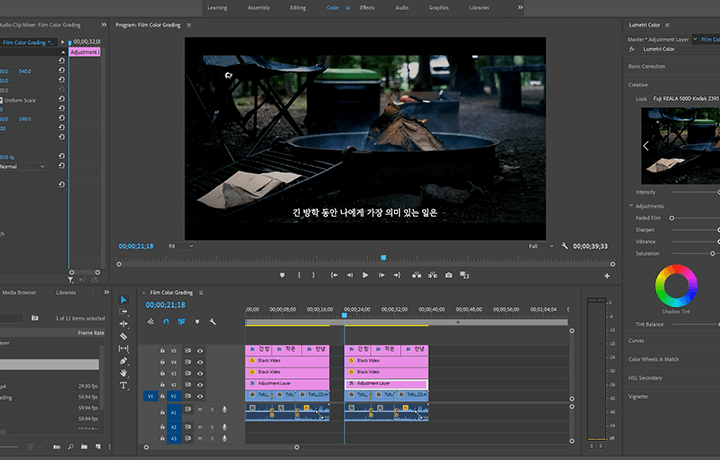
Beyond simply knowing where to find these ‘New Item’ tools, the true professional touch lies in their strategic implementation. This involves understanding how each element functions within the broader editing workflow.
- Strategic Placement: Consider how a generated ‘Color Matte’ can act as a background for text overlays or titles, providing visual separation and polish. Similarly, strategically placing ‘Black Video’ can create dramatic fades or mask sections to achieve a vintage aspect ratio effect.
- Integrating Countdown Leaders: Use the ‘Universal Counting Leader’ not just as a timer, but as a dramatic intro to significant scenes. By adjusting its colors and audio cues, you can set the tone for what’s to come. For instance, making the countdown orange and placing it on a higher video track (V3 or V4) helps it stand out against your primary footage.
- Leveraging Guides for Precision: When creating visual framing with elements like ‘Black Video’ for a vintage look, enabling ‘Show Rulers’ and ‘Show Guides’ in the settings is vital. Dragging these guides allows for precise positioning of your black bars, ensuring symmetrical and clean framing. Turning them off afterwards keeps your workspace uncluttered.
- Efficient Workflow with Shortcuts: The script emphasizes using keyboard shortcuts like ‘C’ for the Cut tool and ‘V’ for the Selection tool. Learning these shortcuts, along with ‘Ripple Delete’ (right-click on empty space), dramatically speeds up the editing process, allowing you to focus on creative decisions rather than manual adjustments.
- Layering for Depth: Placing primary footage on V2 and background elements like color mattes or secondary video clips on V1 is a fundamental layering technique. Adjusting scale and position in the ‘Effect Controls’ panel, and then copying and pasting these ‘Motion’ attributes to other clips, ensures visual consistency across multiple elements.
💬 Frequently Asked Questions
Q. As a Designer, what’s the most overlooked ‘New Item’ feature for enhancing video transitions?
Designer: The ‘Universal Counting Leader’ is often underutilized beyond its basic countdown function. By customizing its colors and audio, you can create distinct visual cues for major scene changes, effectively signaling shifts in narrative or mood without relying solely on cuts. It’s a powerful tool for adding professional flair to your edits.
Q. How can I quickly ensure my generated elements (like color mattes or black video) match my project’s exact specifications?
Designer: When creating a new item like a ‘Color Matte’, Premiere Pro automatically references your current sequence settings. This means you usually don’t need to manually adjust resolution or frame rate. For ‘Black Video’, it’s a simple click. The key is to create these elements after you’ve established your main sequence settings.
Q. What’s a practical tip for organizing the ‘New Item’ elements I create in the Project panel?
Designer: The most effective strategy is to group similar generated assets. Select all your created ‘Color Mattes’, ‘Black Videos’, and ‘Countdown Leaders’, then right-click and choose ‘New Bin’ (or create a folder). Naming this bin something like ‘Generated Assets’ or ‘Special Elements’ keeps your Project panel tidy and makes it much faster to locate these resources later.